Everything RoleScaler does, in the order you'll probably use it: set up your CV, find or add jobs, check how you match, tailor, write the letter and track the application through to an offer. Questions this doesn't answer are probably in the FAQ.
Getting started
Sign up with your email or Google. A short profile follows: your current role, the role you're after, your years of experience and the tools you use. It's used to point out jobs that mention your skills, and you can change it any time in Settings.
- Dashboard
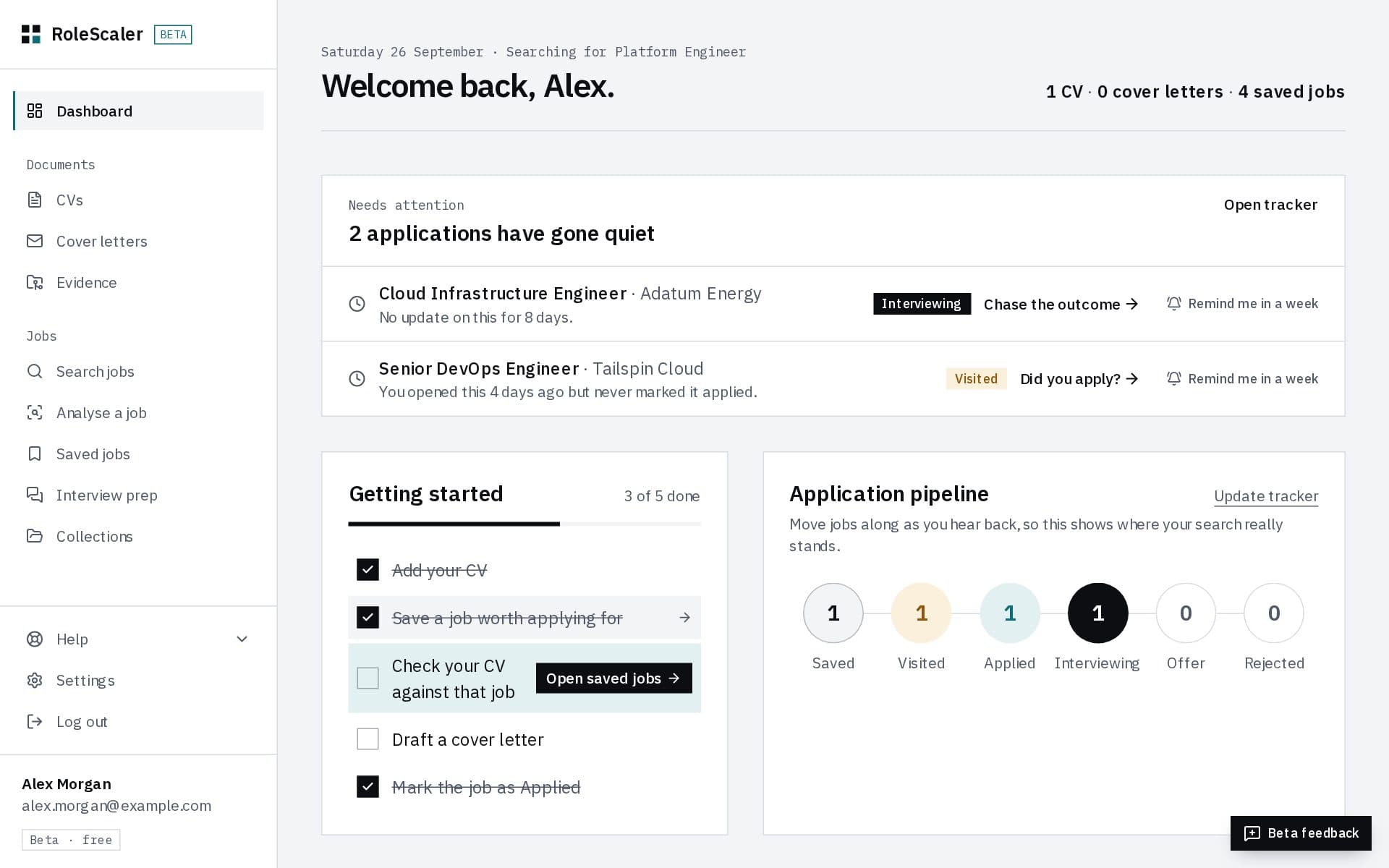
- Your home page. Getting started lists the next thing to do until you've done it all; the application pipeline counts your jobs at each stage (click a circle to see them, or Update tracker to move them along).
- Needs attention
- Applications that have gone quiet: a job you opened but never marked applied, one you applied to ten days ago with nothing since, an interview with no update. Click one to go straight to it in your tracker. Not ready to act? Remind me in a week hides it until then; nothing about the job changes.
Your CV
Everything else works from your CV, so start here: CVs → New CV.
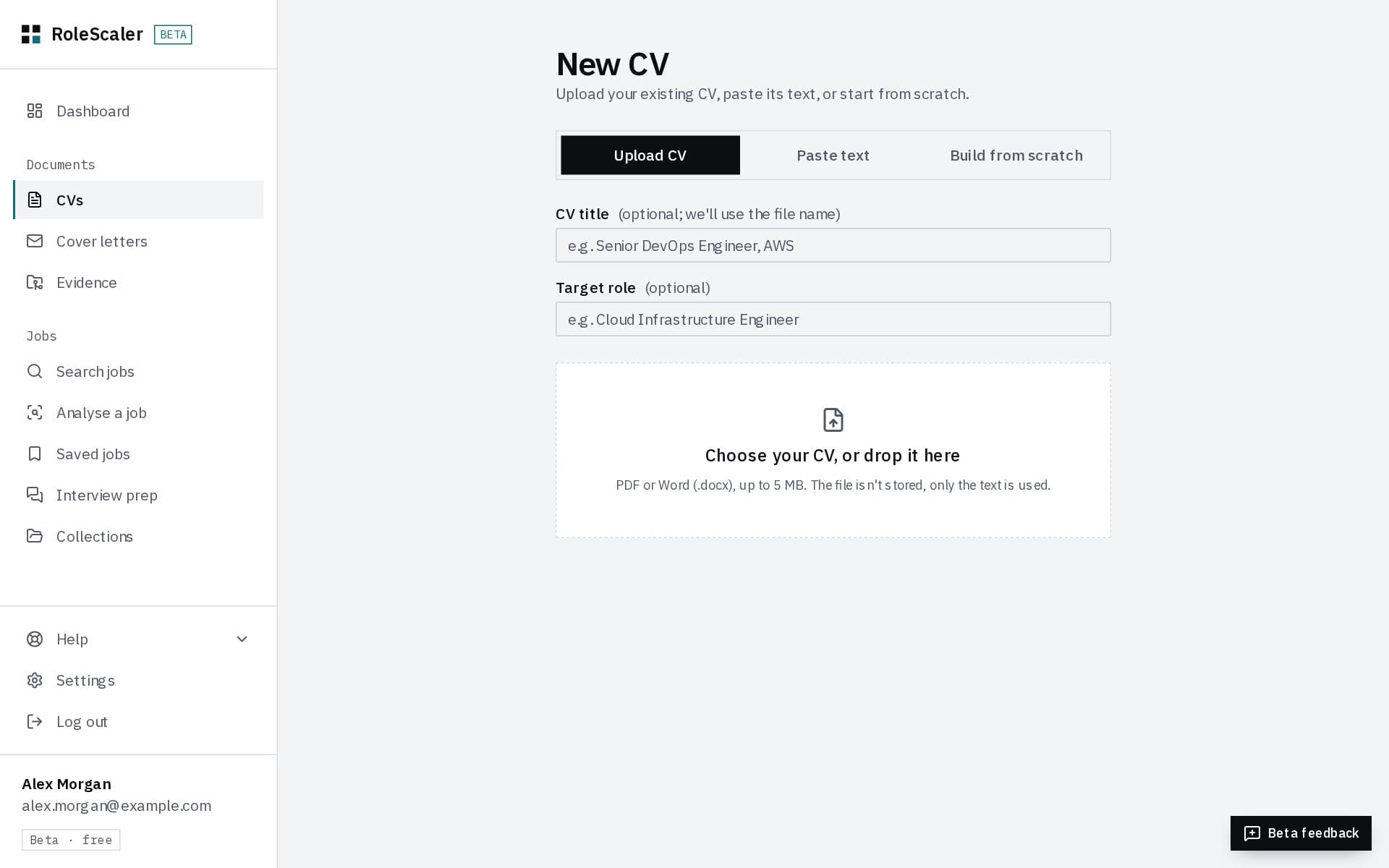
- Upload CV
- A PDF or Word file up to 5 MB. We read the text and sort it into sections; the file itself isn't kept.
- Paste text
- Copy your CV from anywhere and paste it in. The same reading happens.
- Build from scratch
- An empty CV to fill in section by section.
Editing, exporting and tailoring a CV
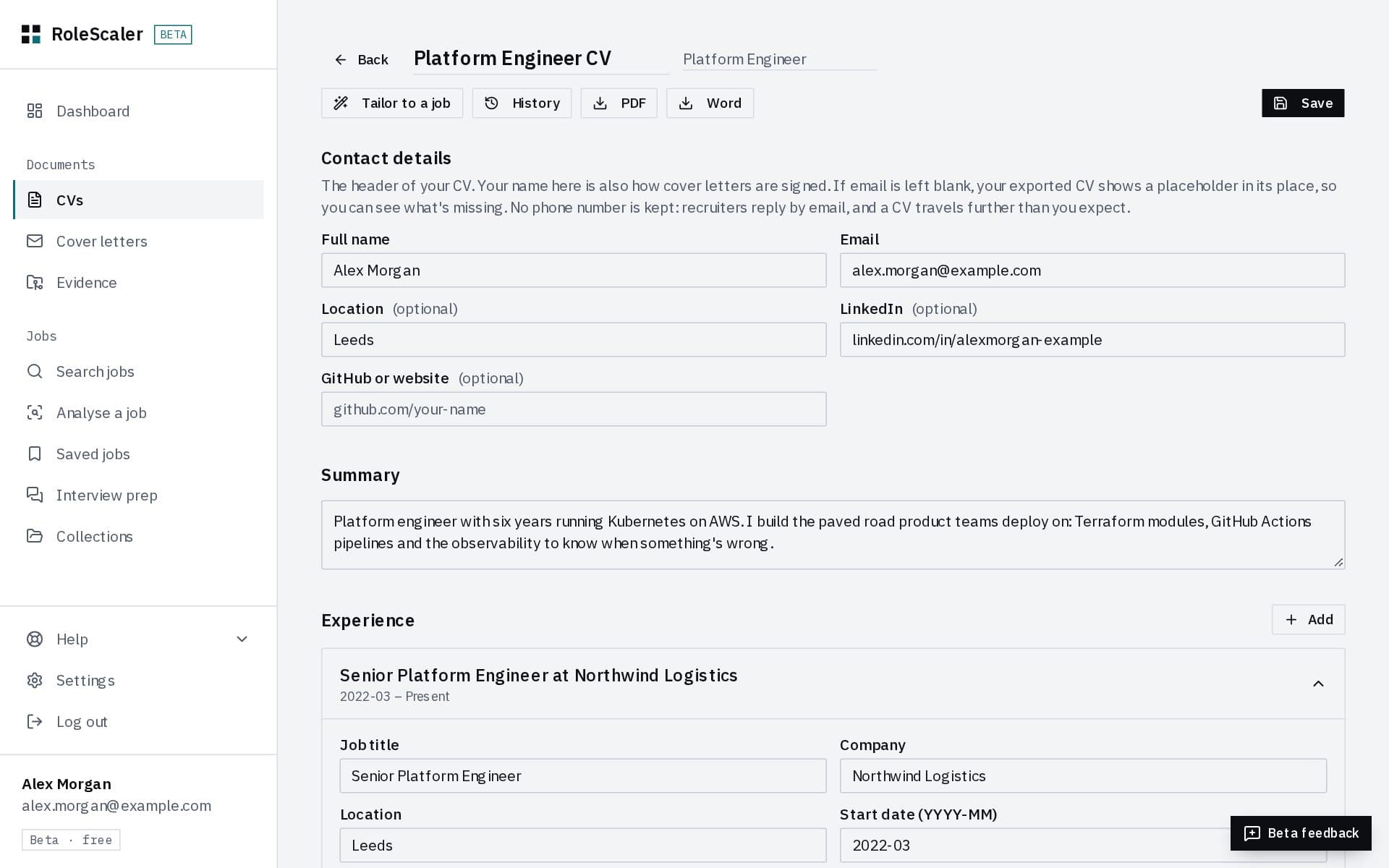
Open a CV to edit it: contact details, summary, experience, education, skills and certifications. Press Save when you're done.
- PDF and Word
- Download the CV, laid out cleanly for applicant tracking systems.
- Tailor to a job
- Paste a job description and get suggested edits for that job. Each is labelled: Backed by your CV, Needs a fact from you (fill in the bracketed detail), or Not in your CV (edit it to something you really did, or leave it). Accept only what you could defend in an interview.
- Default CV
- Your first CV is the default, used for match estimates unless a job's collection has its own. Change it from the ⋮ menu on the CVs page.
Undoing changes: History
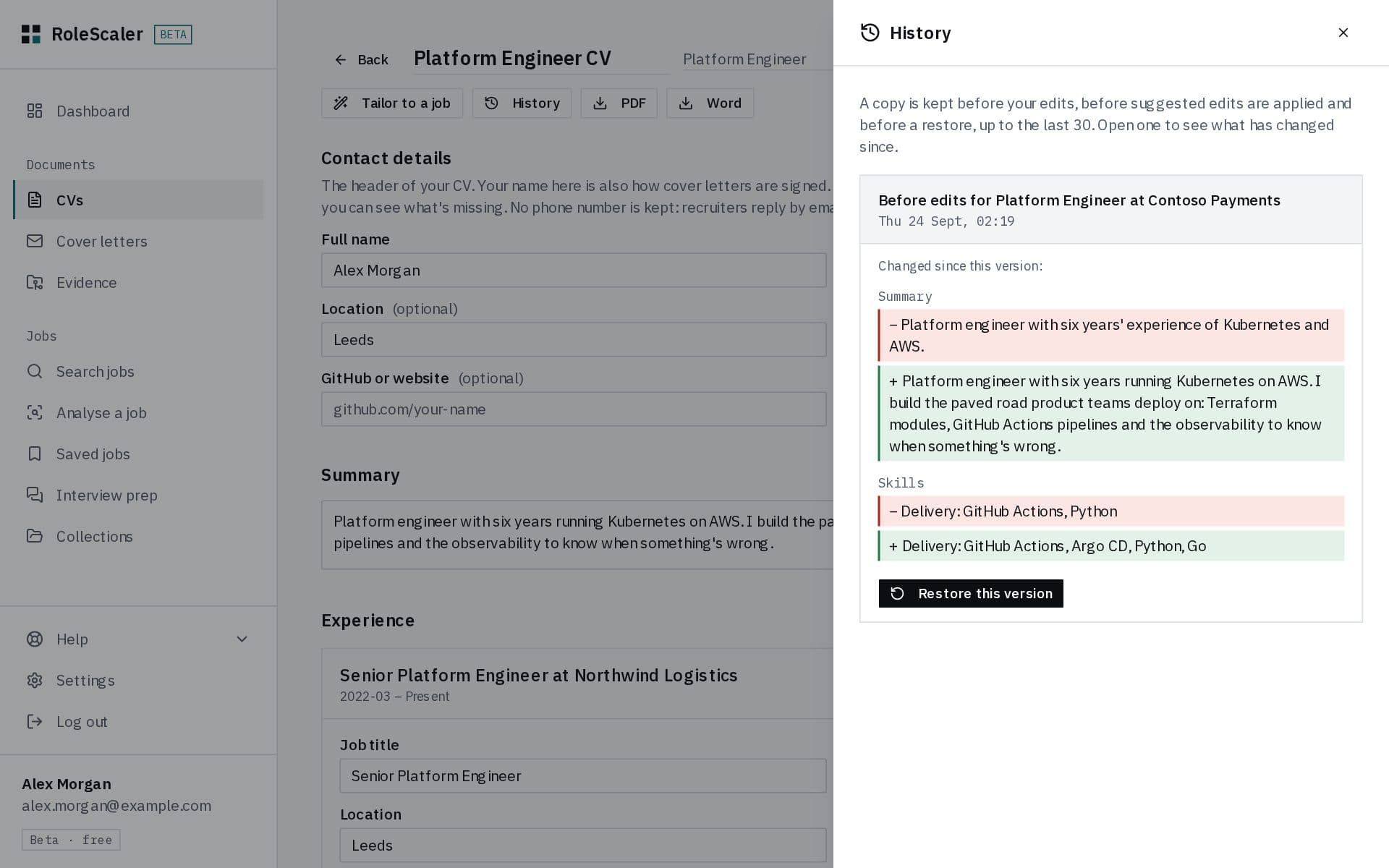
History in the CV editor lists earlier copies of that CV. A copy is kept before your edits, before suggested edits are applied (named after the job they were for) and before a restore, up to the last 30.
- Open a copy
- See what has changed since: lines taken out in red, lines added in green, section by section.
- Restore this version
- Puts that copy back. What it replaces is kept too, so a restore can itself be undone.
Finding jobs
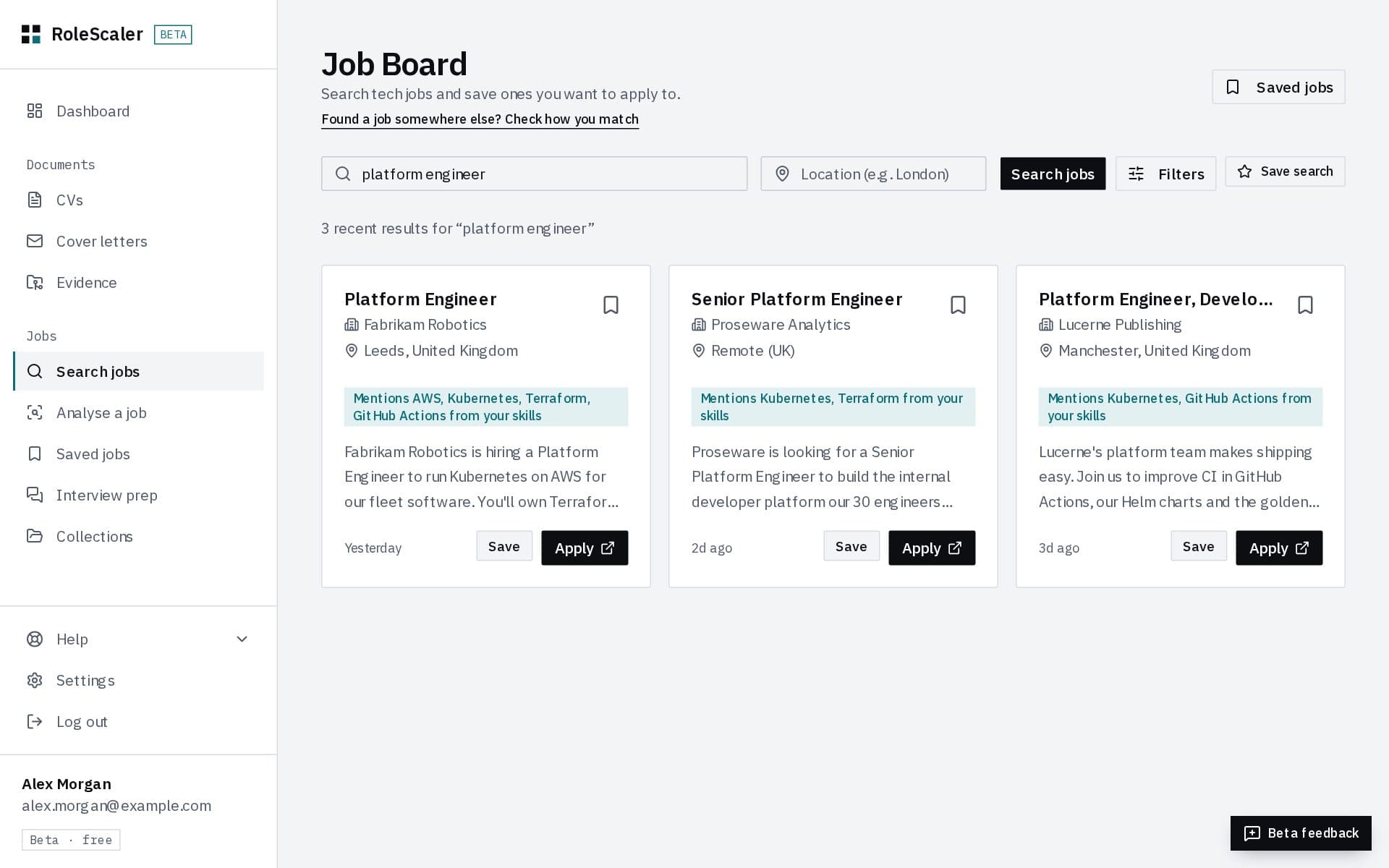
Search jobs with a job title or keyword, a location, or both. Filters narrow it by date, salary and full-time.
- Straight from employers
- Roles first, read from employers' own careers pages, with the whole advert included, so a saved one is ready for a match estimate straight away.
- More from job boards
- Further down, agency and larger employers' roles from job boards. These carry only a summary: open the job and paste its full description when you prepare your application.
- Mentions … from your skills
- A quick note on listings that name tools from your profile. It's not a score, just a pointer.
- Save and Apply
- Save puts the job in your tracker. Apply opens the employer's posting.
- Press Save search to keep a search, then turn on Email me when there's something new: at most one email a day, only when there are roles you haven't seen, and a link in every email stops it without signing in.
Tracking your applications
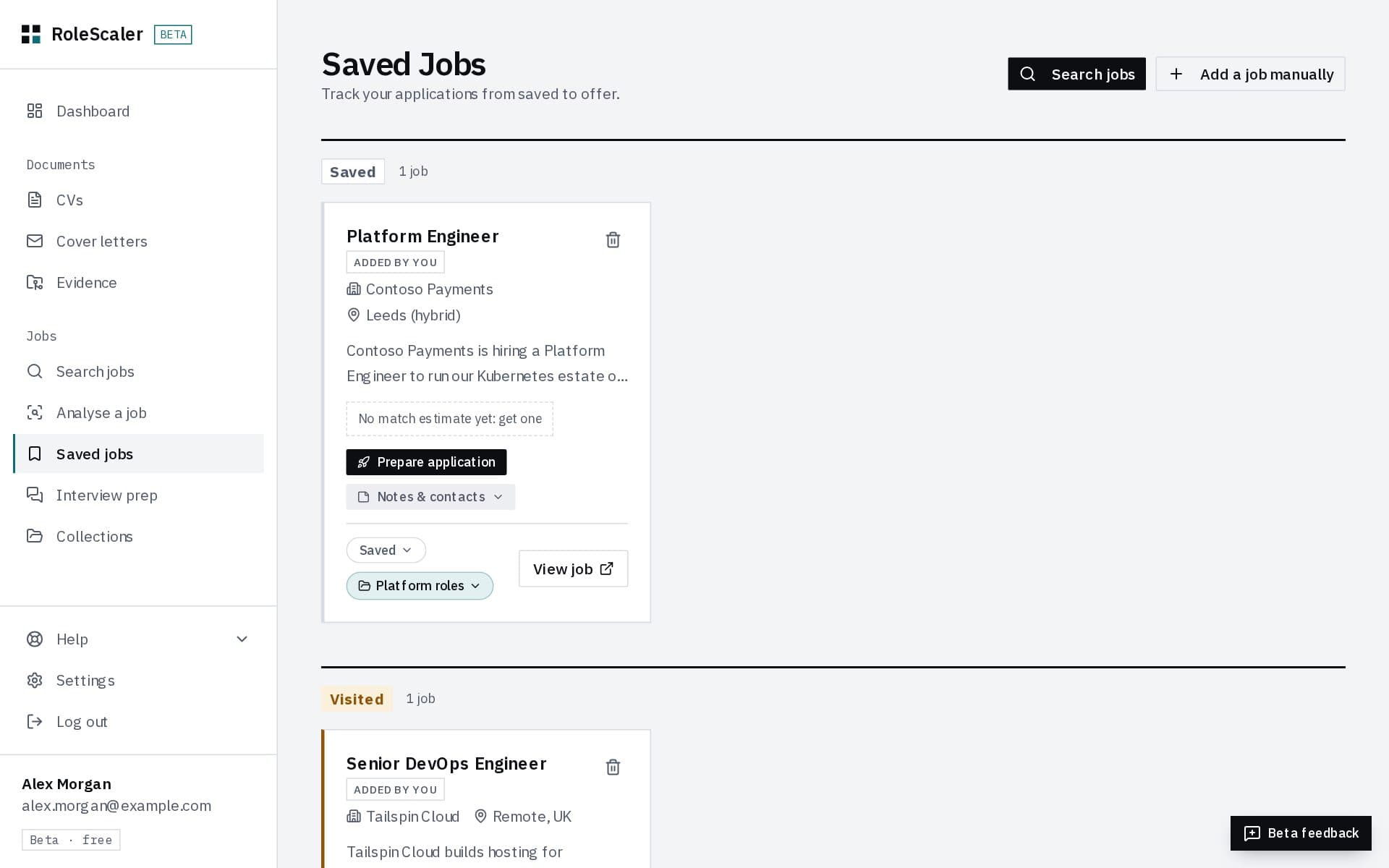
Saved jobs is your tracker, grouped by stage: Saved, Visited, Applied, Interviewing, Offer and Rejected.
- Status
- Change it from the menu at the bottom of each card. Opening a job's posting moves it to Visited, and when you come back we'll ask whether you applied.
- Notes & contacts
- Notes, the people you're dealing with, and when to follow up (see Contacts and follow-ups).
- Interview prep
- Appears once you've applied, and stands out when you're interviewing (see Preparing for an interview).
- Offer or Rejected
- The end of that application, so Prepare application and Interview prep leave the card. Your notes and contacts stay. Moving a job to Offer also opens a short card: what to check before you accept, a box for the offer's details (saved to the job's notes), and the option to pause the reminders on your other applications or move them to Rejected, with a polite withdrawal email you can copy. Afterwards, Offer tools on the card brings the checklist back, pauses the other reminders or copies the email.
- Collection
- File the job under a kind of role (see Collections).
- The bin icon
- Moves the job to the recycle bin, where it stays for 7 days in case you change your mind.
Contacts and follow-ups
Notes & contacts on a saved job holds what you'd otherwise keep in your head or an inbox.
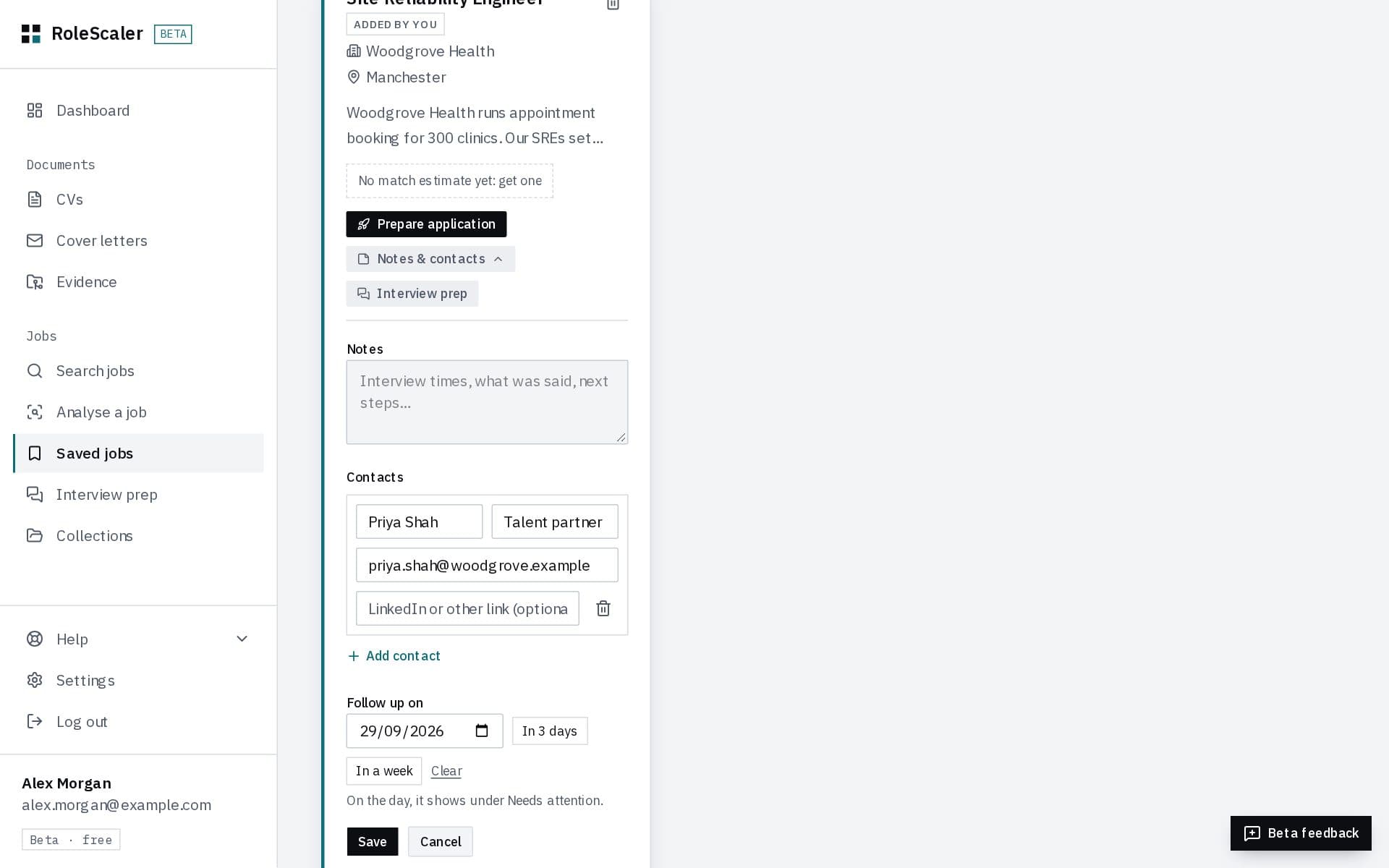
- Contacts
- Up to five people for each job, such as a recruiter or the hiring manager. Only the name is needed; add a role, an email address or a LinkedIn link if you have them.
- Follow up on
- The day you mean to chase. Pick a date, or In 3 days or In a week. Until then the job stays quiet; on the day it shows under Needs attention on your dashboard, naming the first contact.
- Contacts are kept for you alone. We never contact them.
Preparing an application
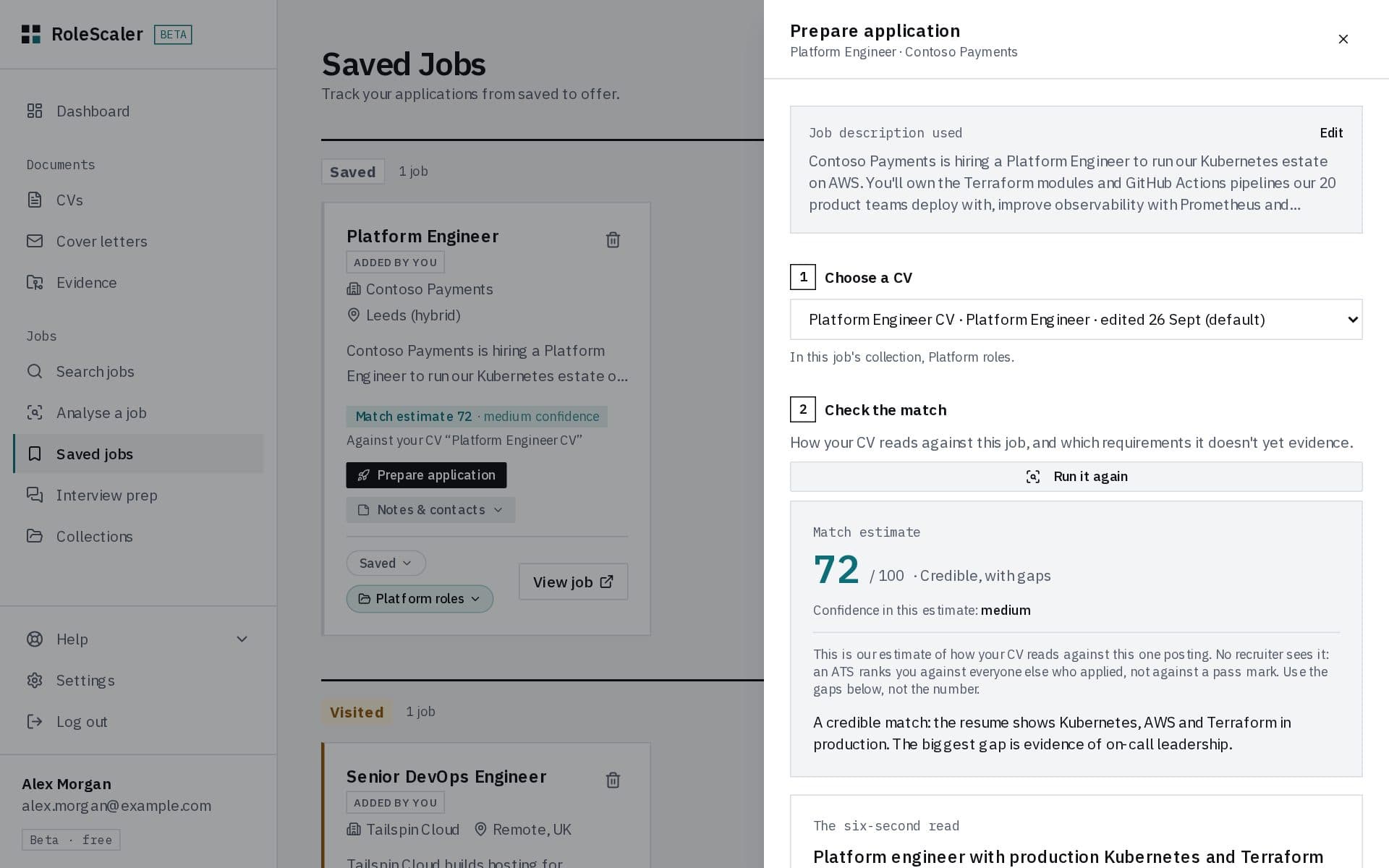
Prepare application on any saved job opens everything you need for that one job, in order.
- 1. Choose a CV
- The job's collection CV, or your default, shown as a card with its target role, collection, when it was last edited and why it was picked. Change lists your other CVs, grouped by collection, so ones with the same name are easy to tell apart.
- 2. Check the match
- A match estimate out of 100 with a confidence level, the evidence your CV shows for the job and what it doesn't yet. It's an estimate, not a pass mark: use the gaps, not the number.
- 3. Tailor your CV to this job
- Suggested edits for this job, labelled by how well your CV supports them. The ones you accept are made to that CV.
- 4. Cover letter
- Written for this job from your CV.
- 5. Apply
- Open application takes you to the posting. When you've applied, change the job's status to Applied, or answer Yes, applied when we ask on your way back.
- A job from a job board needs its full description first: open the posting, copy the advert and paste it in when asked.
Preparing for an interview
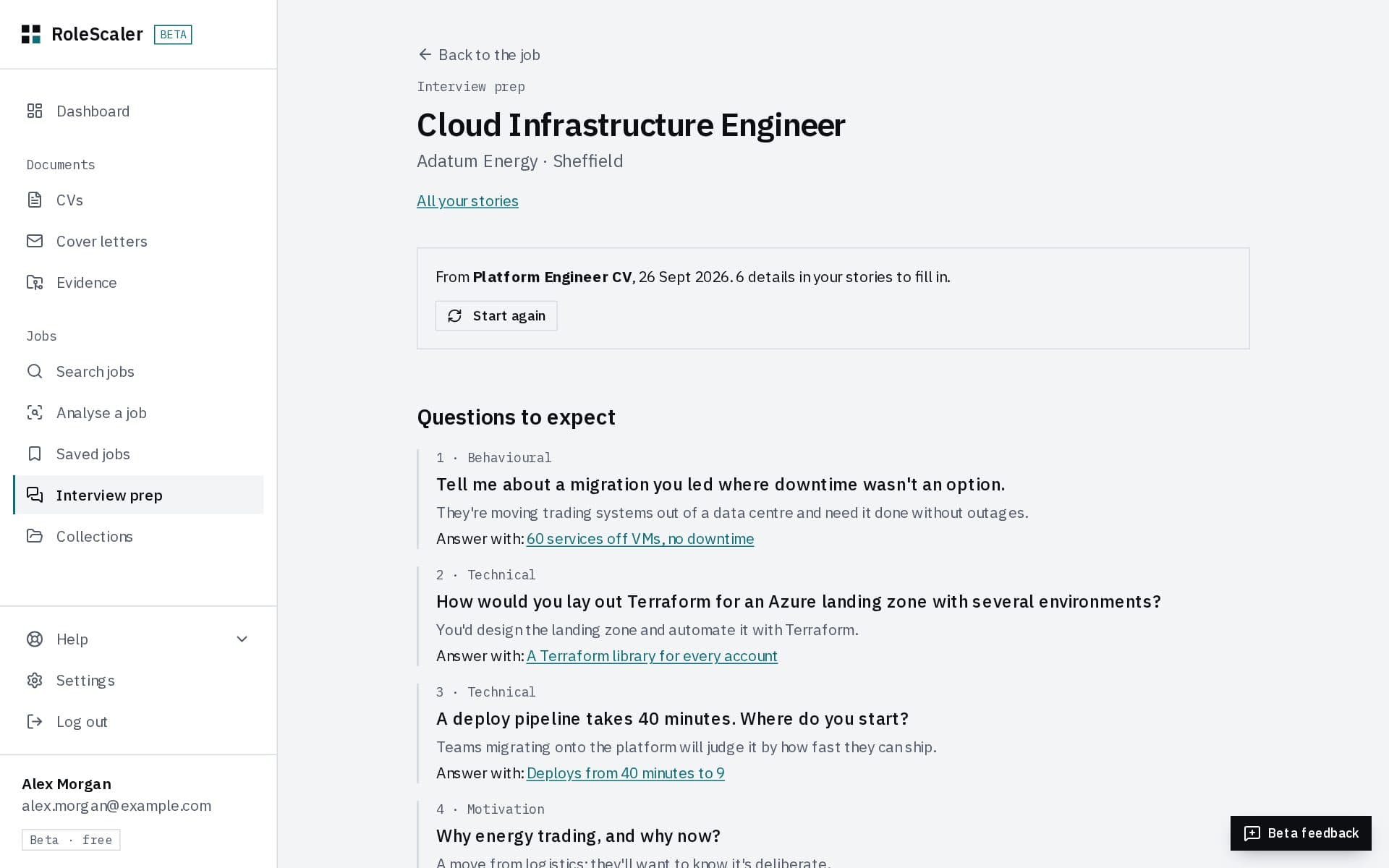
Interview prep on a saved job (or Interview prep in the sidebar) gets you ready for that interview. Choose the CV and press Prepare me for this interview. It takes a minute or two, and the page shows each step as it happens. You get:
- Questions to expect
- Drawn from what this advert actually asks for, each with what the interviewer is really checking. For cloud, DevOps, SRE and platform roles they include an incident, a trade-off, cost and a design question.
- Your stories
- Answers outlined as Situation, Task, Action, Result, each built on a line of your CV that it quotes. Details only you know are left as highlighted [questions]: press Edit and fill them in with what really happened.
- Gaps to be ready for
- What the advert wants that your CV doesn't show, with an honest way to answer.
- Questions to ask them
- Specific to this role, and not already answered by the advert.
- Nothing is invented for you to defend. Every draft is independently fact-checked before you see it: every story must answer the question it's linked to, and every sentence must match your CV. Anything that doesn't is rewritten as a question for you, or left out.
- At the end, Was this prep useful? takes one click. If it wasn't, ticking what was wrong is how we find out and fix it.
- Interview prep in the sidebar gathers every story by the skill it proves, so the one about an outage is there for the next interview too.
- It needs the job's full advert. For a job from a job board, paste it in through Prepare application first.
- It takes a minute or two. On a phone you can switch to another app while it runs: it carries on, and appears as soon as you're back.
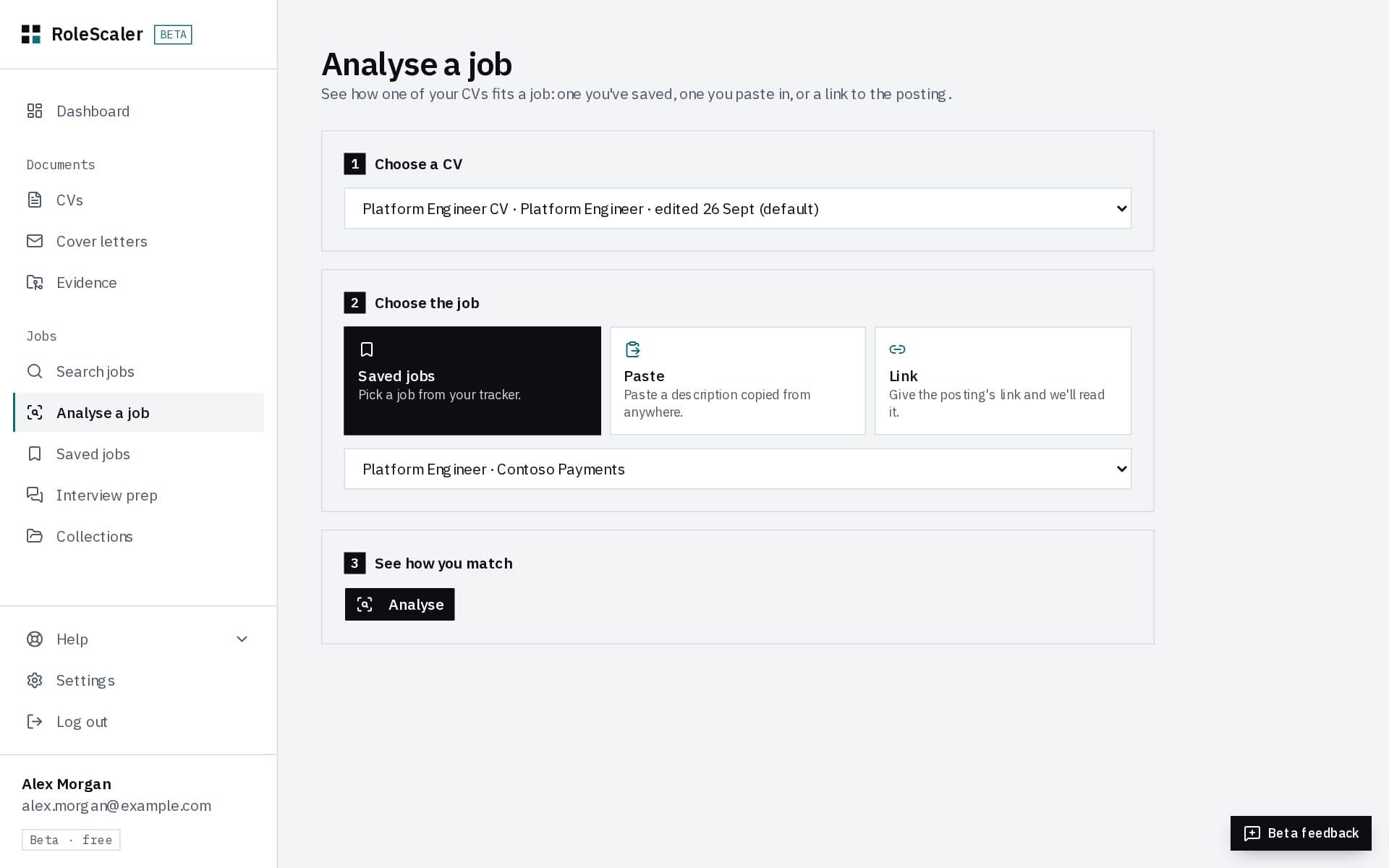
Checking any job: Analyse a job
See how you match a job without saving it first. Choose a CV, then the job (one from your tracker, a description you paste, or a link to the posting) and press Analyse. If it's a good fit, press Save to tracker.
Jobs you found somewhere else
A job you found on another site gets the same treatment as one you found here.
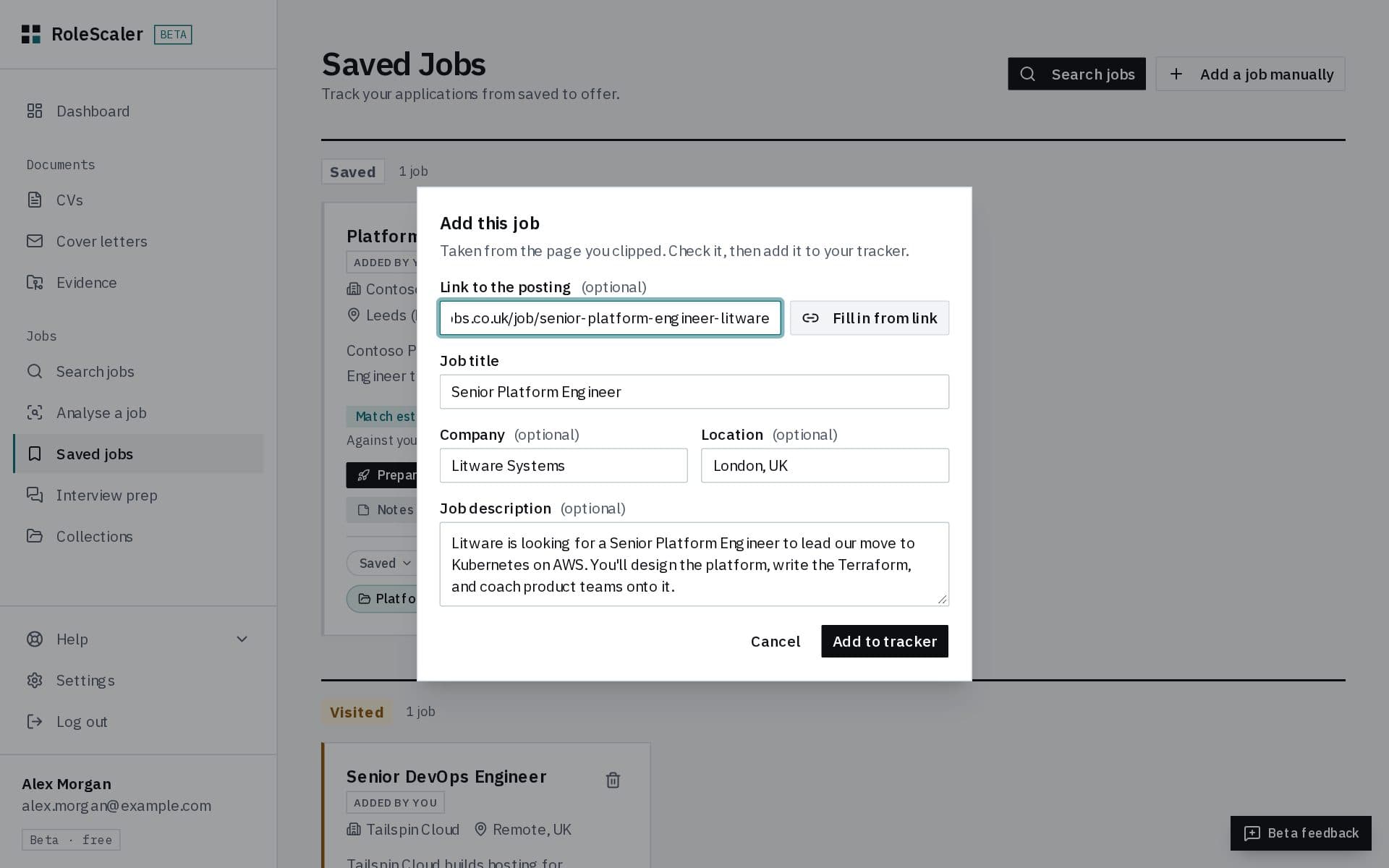
- Add a job manually
- On Saved jobs. Paste the posting's link and press Fill in from link, or type the details. Only the title is needed; the description can come later.
- The browser extension
- On a job advert on Totaljobs, Indeed, LinkedIn, Reed, Google or a company's careers page, click the RoleScaler button in your browser's toolbar. RoleScaler opens with the job filled in; check it and press Add to tracker.
RoleScaler browser extension
For Chrome, Edge, Brave and Opera on a computer. Not on phones, Firefox or Safari yet.
Coming soon for Chrome and Edge
- The extension works on split pages too, where the job opens beside a list of results. If it picks the wrong text, highlight the advert before clicking.
- It reads only the page you click it on, only when you click. Nothing is saved until you press Add to tracker.
- Some sites don't allow their pages to be read by another site, so Fill in from link can't read them. The extension can, because it reads the page in your own browser; otherwise paste the description.
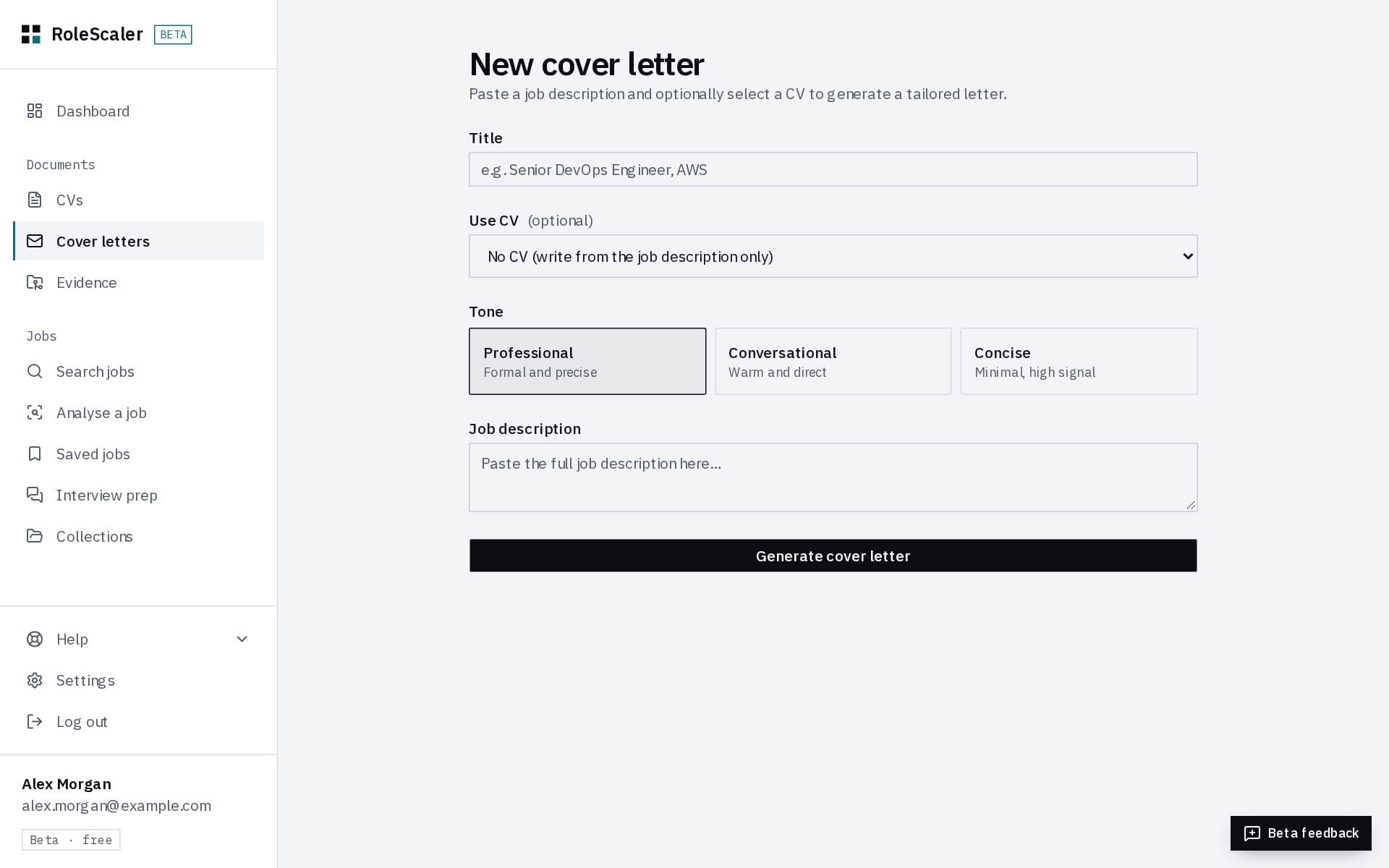
Cover letters
Cover letters → New cover letter, or step 4 of Prepare application. Give it a title, the job description and (recommended) a CV, and pick a tone: Professional, Conversational or Concise.
- Facts are taken from your CV and the job first, the letter is written from those facts only, and every sentence is then checked against them. Anything that can't be supported is rewritten or removed, and you'll see the check with the letter.
- It takes up to a minute. The letter is signed with your name only, with no address or phone number.
Collections
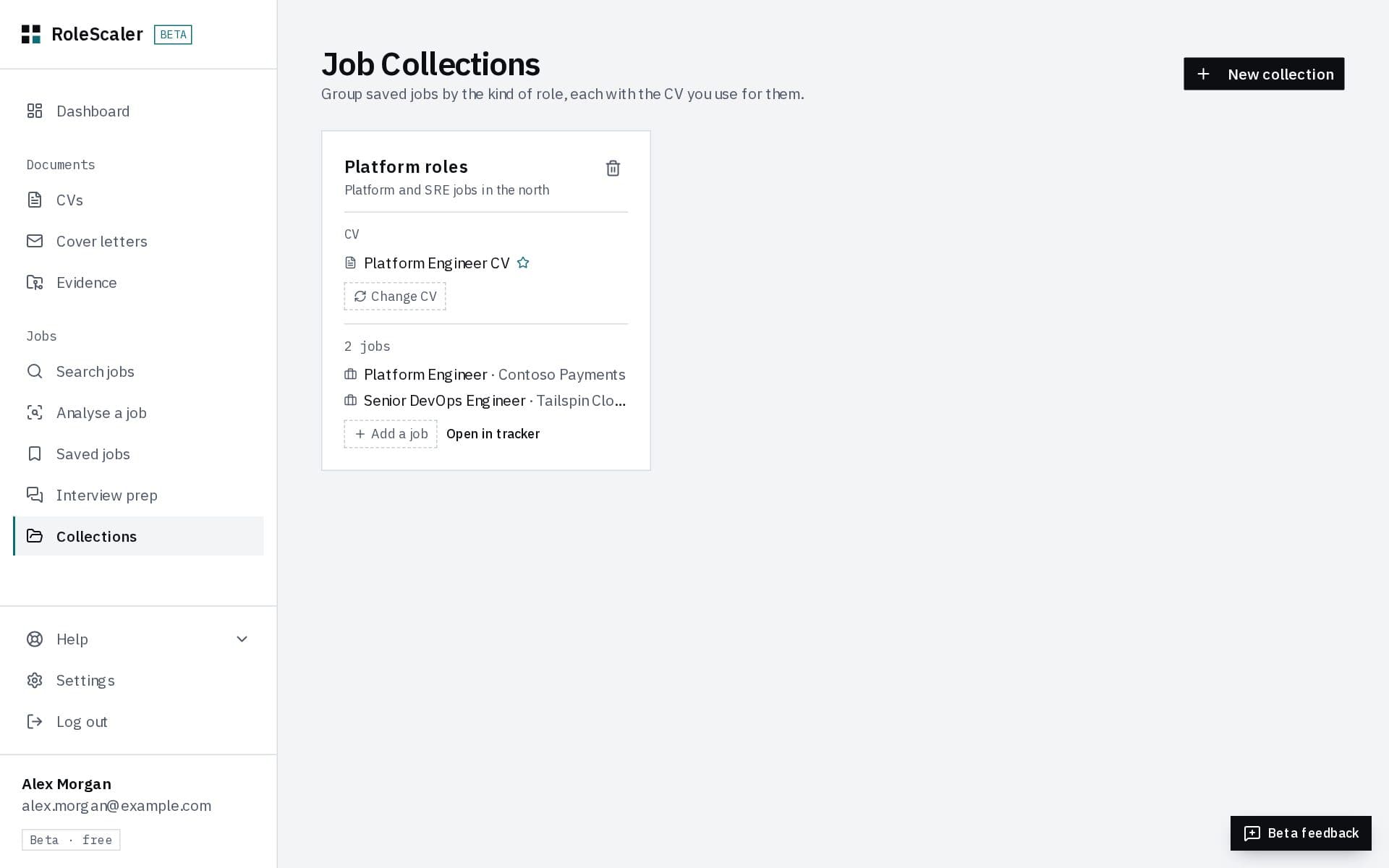
Running two kinds of search at once, say platform roles and SRE roles? Make a collection for each. A collection holds jobs and one CV, and that CV is the one used for its jobs' match estimates and tailoring.
Evidence from GitHub
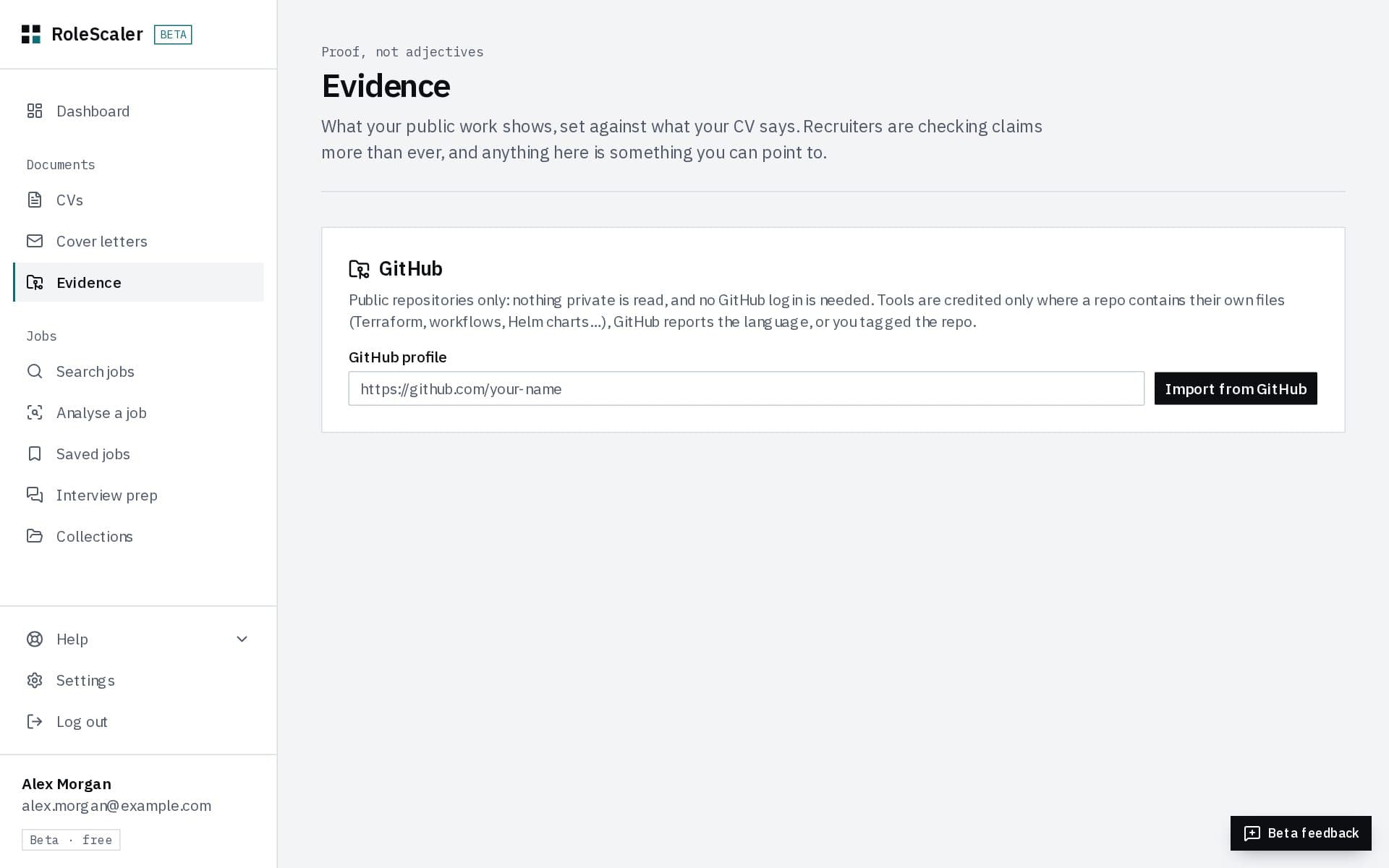
Evidence shows what your public work backs up. Give it your GitHub profile and it reads your public repositories (nothing private, and no GitHub login) to credit the tools you actually use.
Settings and your data
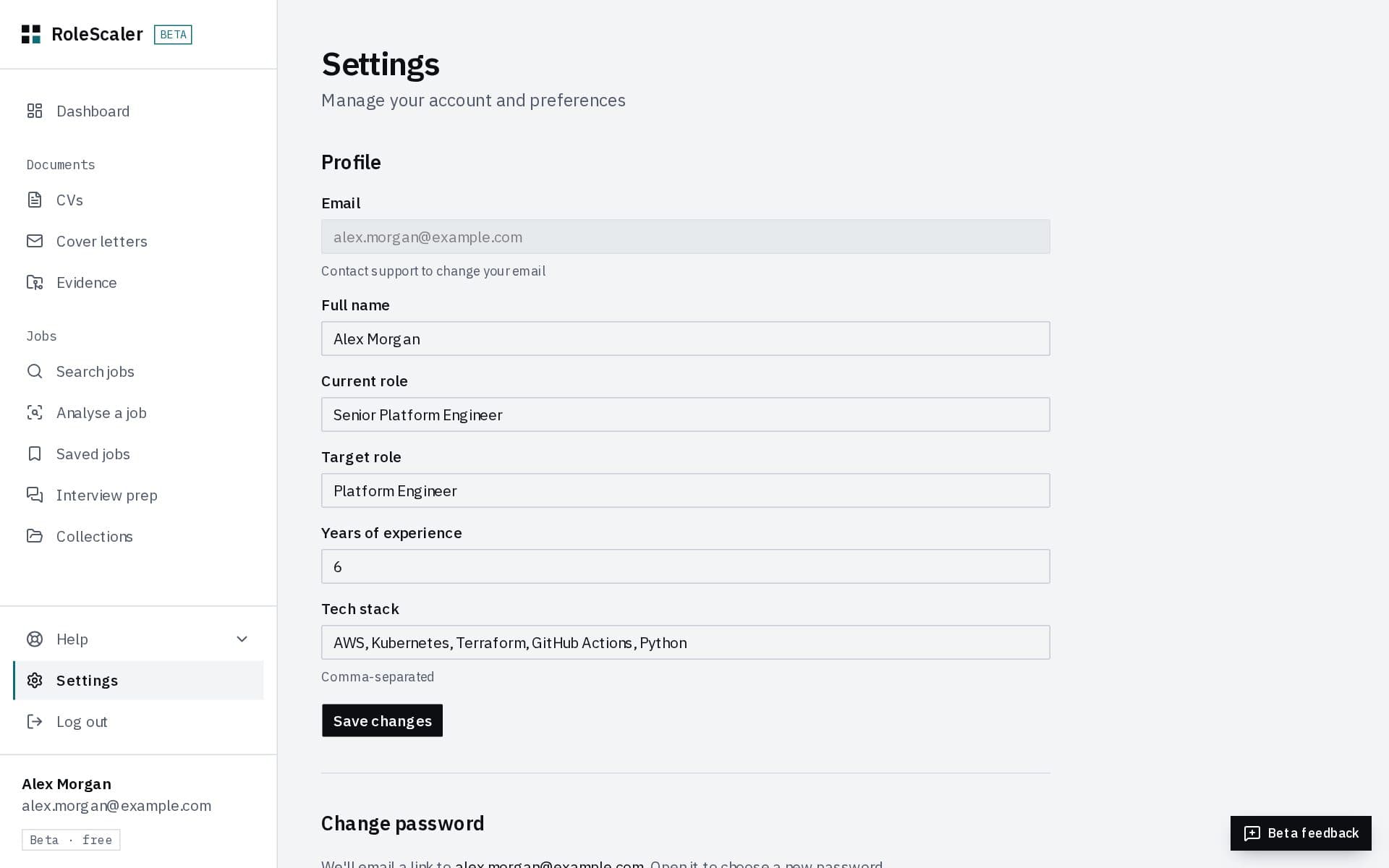
Settings holds your account.
- Profile
- Name, roles, experience and tech stack.
- Change password
- We email you a link to set a new one.
- Your data
- Download my data gives you everything we hold about you in one file.
- Invite a friend
- Your own link to share (on a phone, Share opens WhatsApp, Messages and the rest; on a computer it copies the link), or type a friend's email and we send them an invite. During the beta an emailed invite also lets them sign up, three per person. It's also in the sidebar, under your email.
- Weekly email
- On Mondays, a summary of your tracker: what needs you, follow-ups due, new roles for your saved searches and one thing to do next. Nothing is sent in a quiet week. Untick it to stop it, or use the link in any of the emails.
- Recycle bin
- Anything deleted in the last 7 days, ready to restore.
- Delete account
- Permanently deletes your account and everything in it.
- The AI features have generous hourly limits to stop abuse, for example 30 match reports and 20 cover letters an hour. If you reach one, the message says when you can go again.
Help and feedback
Help in the sidebar has the FAQ and the feedback form. During the beta, the Beta feedback button at the bottom of every page sends us a note along with the page you were on. It's the quickest way to tell us something's wrong or missing.